

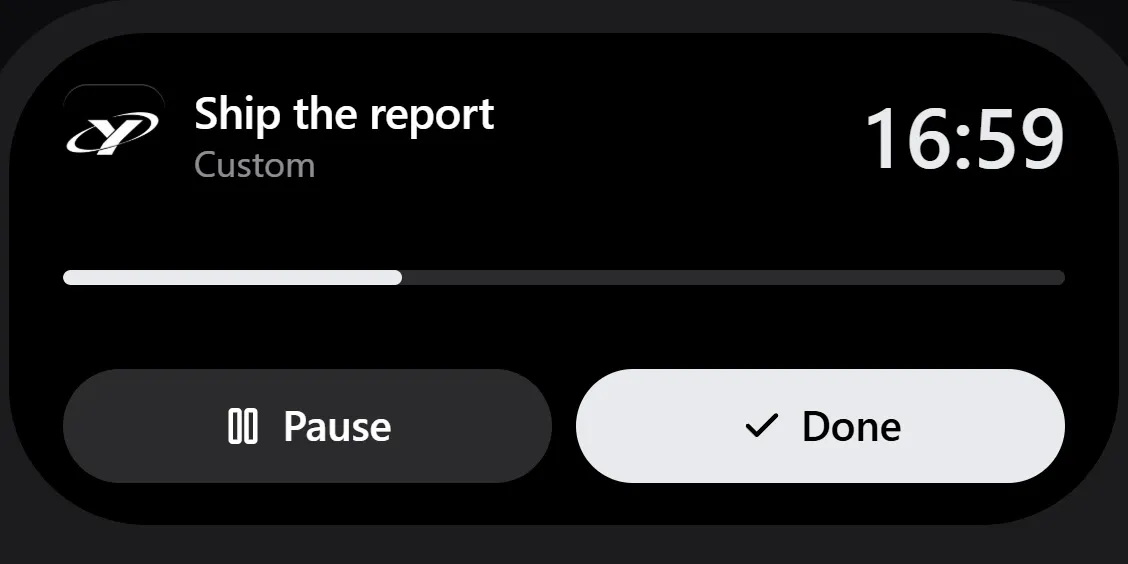
Dynamic Island
Time left, on top of any app. Pause and Done right there.
Your phone is a weapon against you. Ygra is the armor.
Not a planner. Gear.
For iPhone · iOS 17+
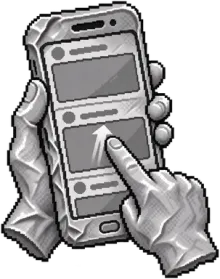
An endless feed. A red dot on the icon. “One more video.” All of it is designed by people paid for your attention. Willpower alone does not win that fight.
You need armor.
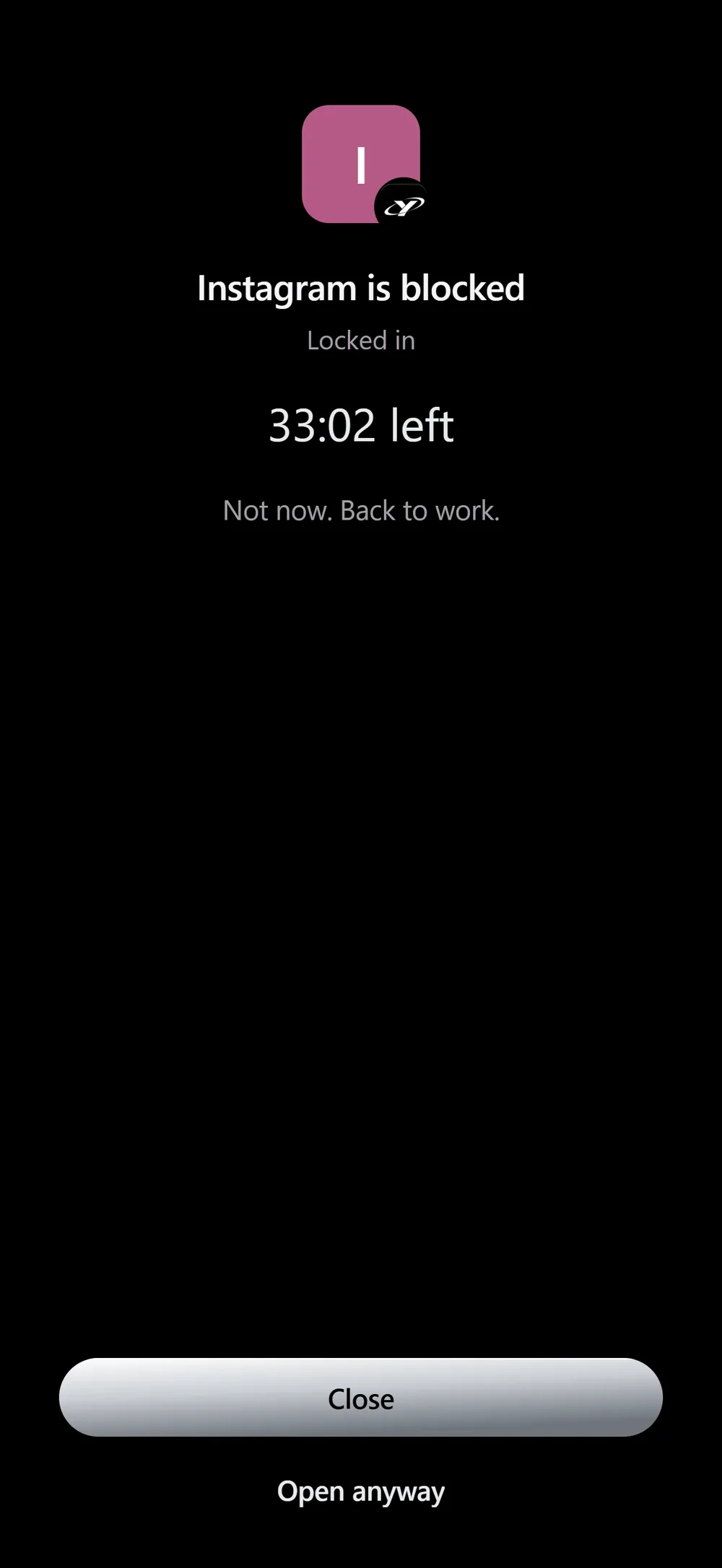
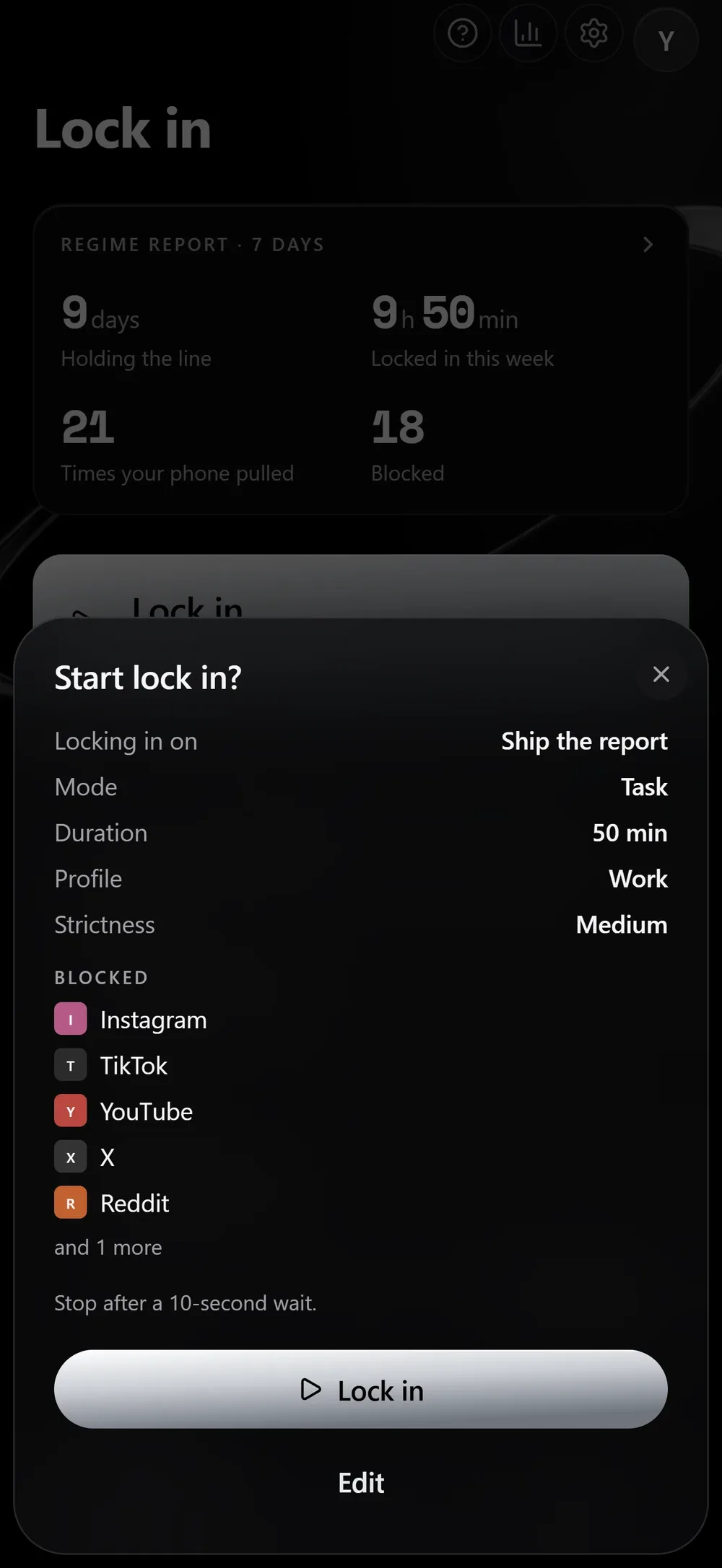
Pick the apps that steal your time. Ygra closes them behind its shield through Screen Time until the timer ends.
Stop any time.
Opening a closed app takes a pause: a wait and a “Why?”.
Stop after a 10-second wait.
Just long enough to change your mind.
No way out until the timer ends.
Up to 2 hours. The Sleep profile, up to 9.
Profiles: Work, Study, Sleep and your own. Each with its own app list.
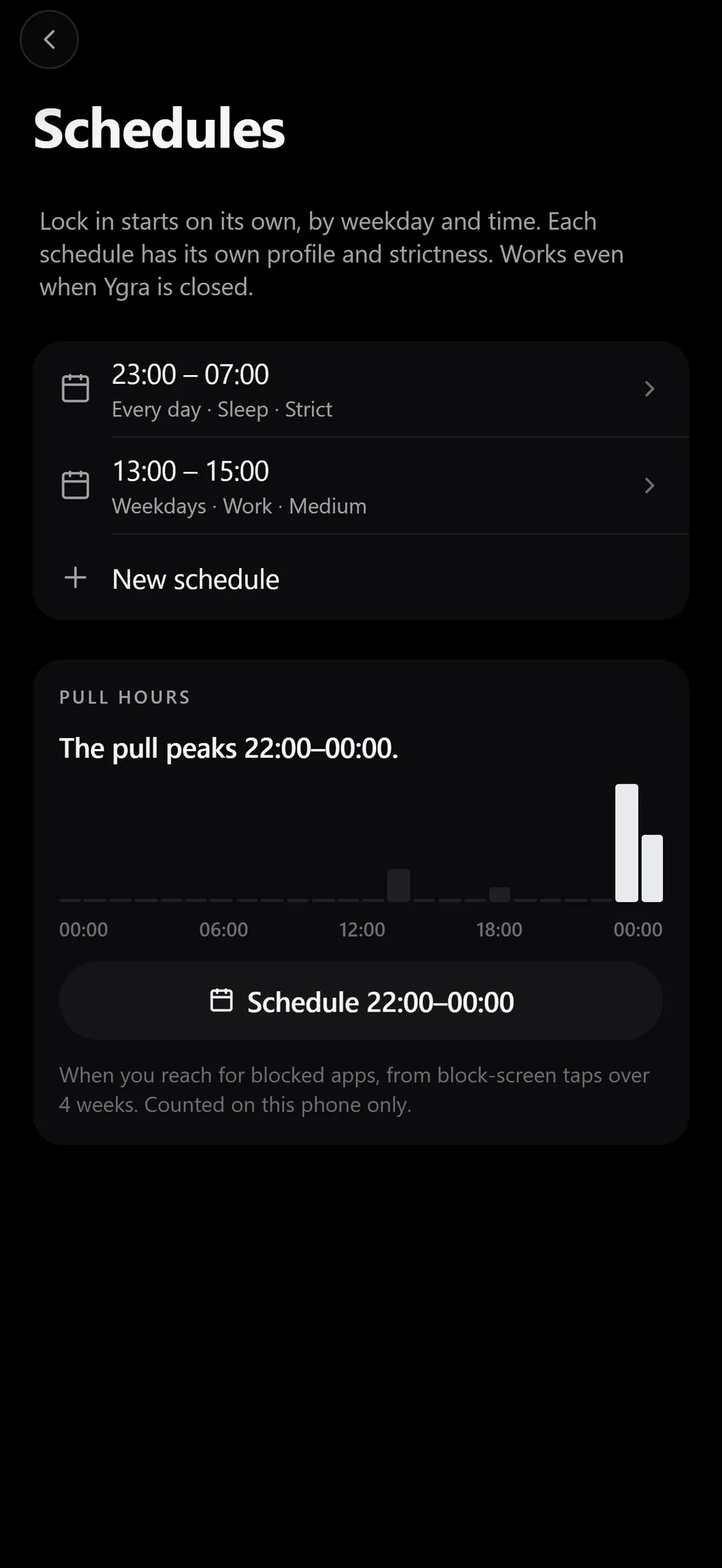
By weekday and time, even when Ygra is closed. Each schedule has its own profile and strictness.
For the first minutes after you wake up, the feed stays closed until you check off 1–3 of today’s tasks.
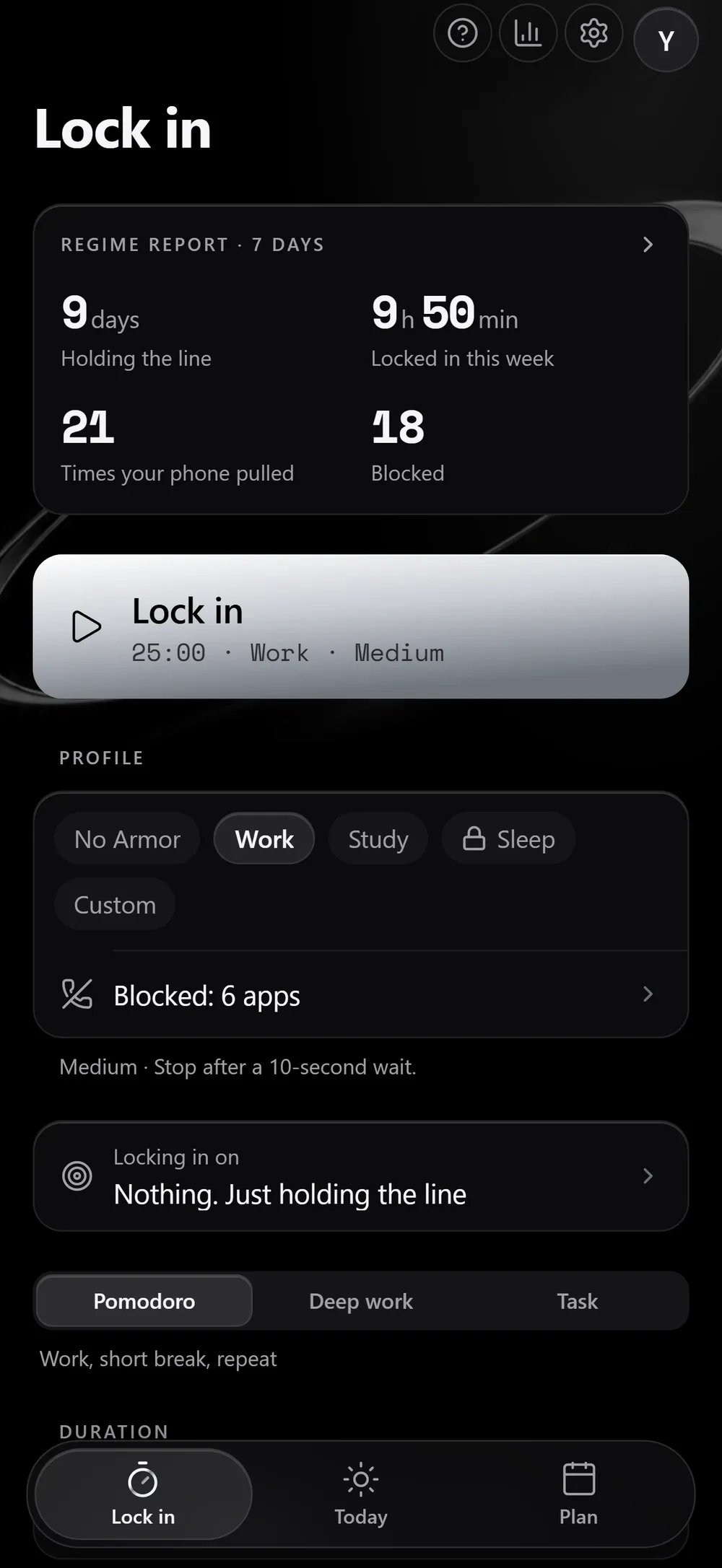
No points, no ranks, no confetti. Just facts: days holding the line, how many times your phone tried to pull you out, how many pulls were blocked.
9days
Holding the line
21
Times your phone pulled
18
Blocked
9h50min
Locked in this week
A sample week
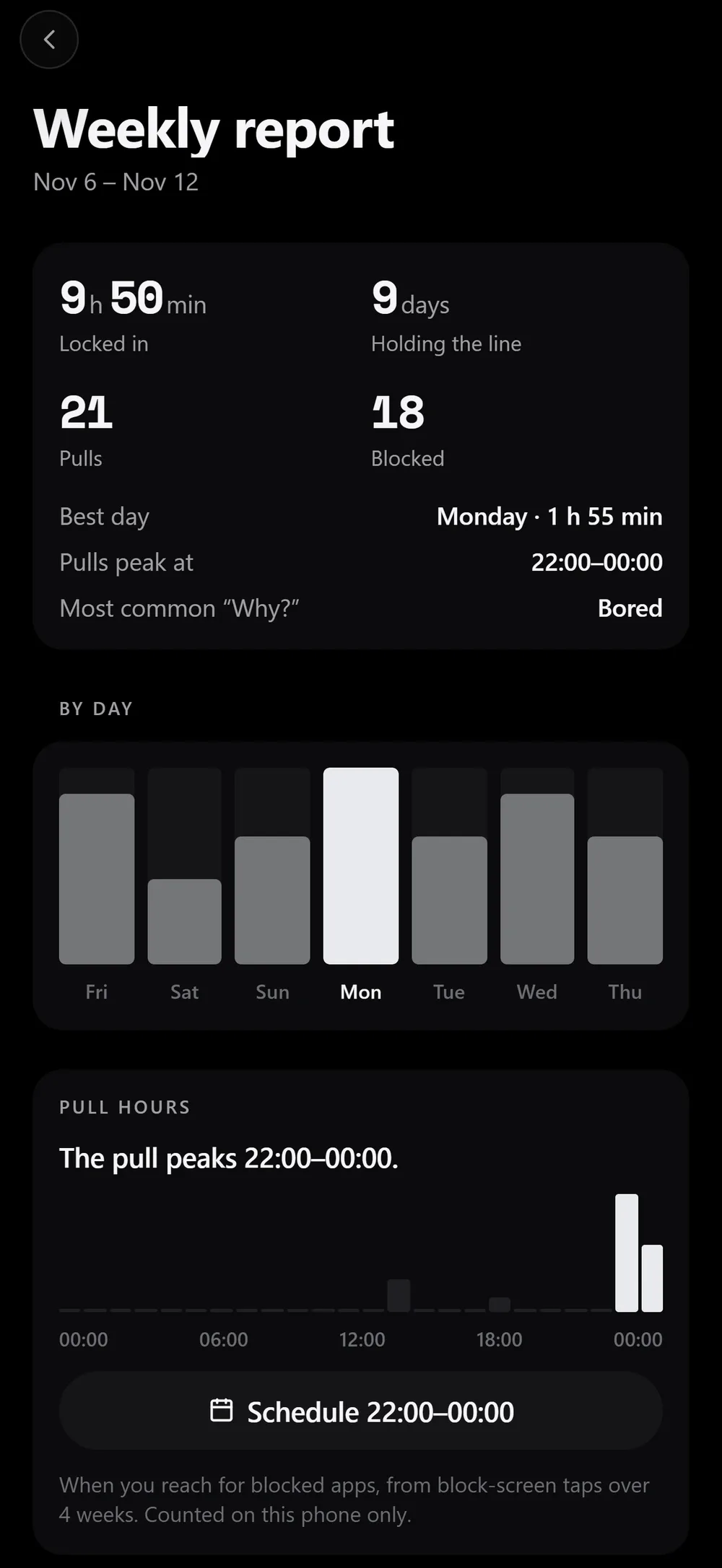
Shows the hours the pull peaks and puts a schedule on them in one tap. Plus a 9:16 poster for your story.

Time left, on top of any app. Pause and Done right there.
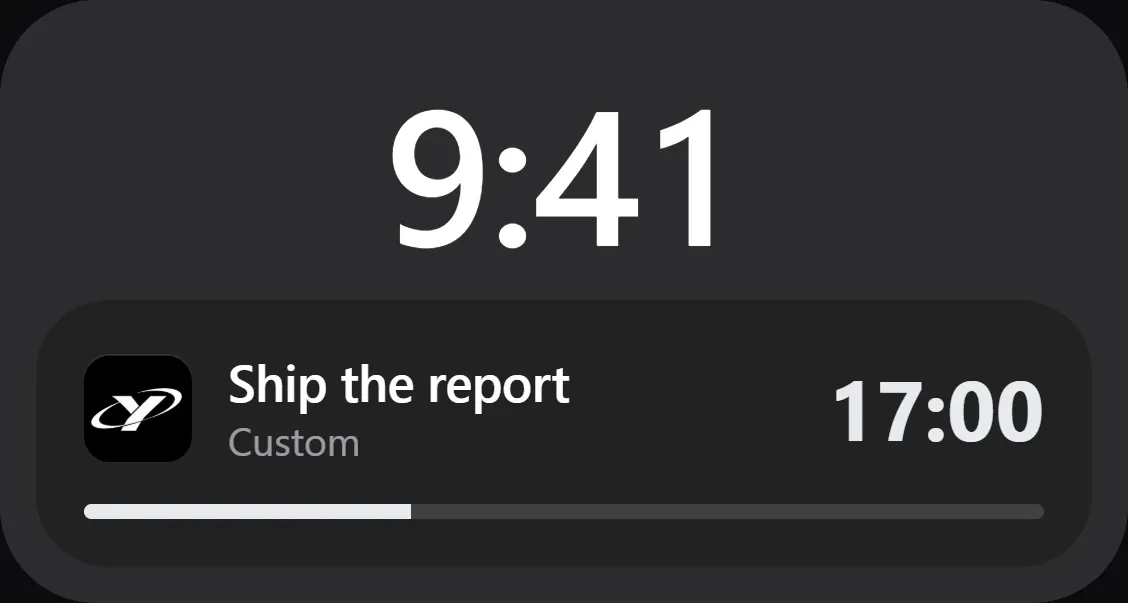
A Live Activity with the timer and the task you are locked in on.
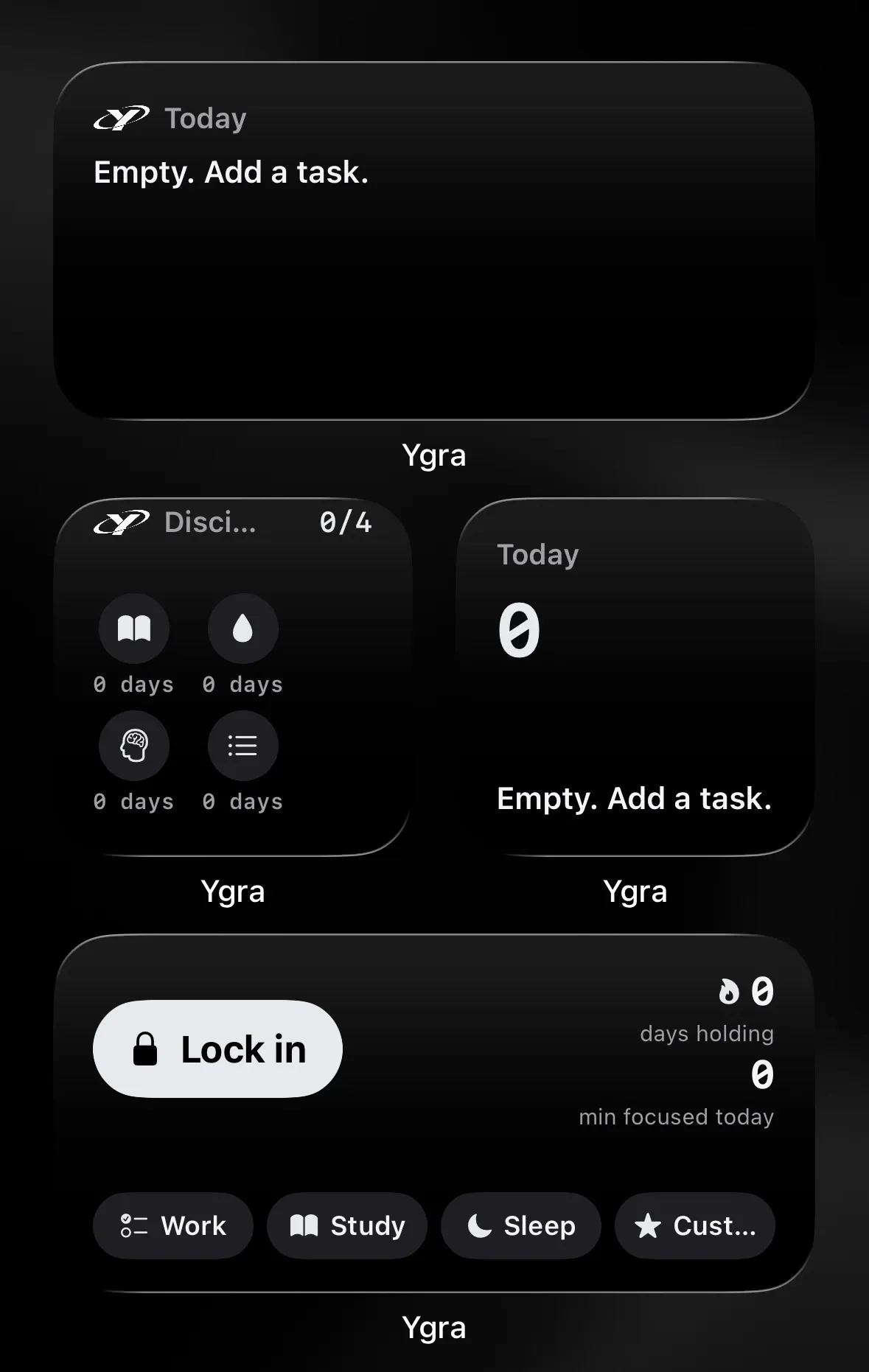
Lock in with one tap from the Home Screen and the Lock Screen.
The planner works for focus, not the other way round. Today and Plan exist to pick one task and close everything else.
 07Privacy
iOS hands the app encrypted tokens only. App names stay with the system.
Everything works signed out and stays on the phone.
No third-party analytics. No data for sale.
A Screen Time limit goes away with one tap. Ygra runs on the same system mechanism and adds strictness, schedules, a morning lock and a pull count. A Strict lock in has no exit until the timer ends.
The rule for getting out of a lock in. Light: stop any time. Medium: after a 10-second wait. Strict: only when time is up — at most 2 hours, the Sleep profile at most 9.
Without it iOS lets no app close other apps. Ygra uses it only for blocking you turn on yourself. Only iOS sees app names; Ygra gets encrypted tokens.
A schedule starts lock in on its own by weekday and time, even when Ygra is closed. The morning lock keeps apps closed after you wake up until 1–3 tasks are checked off in Today. A window must be at least 15 minutes; iOS requires it.
Only on Light and only through the pause: Open anyway → wait → “Why?” → 5 minutes, then closed again. The pull counts either way.
Ygra does not block emergency calls or iOS system features. Keep calls, maps and banking out of the profile — only what you pick gets blocked.
No. Everything works signed out and stays on the phone. An account is only for sync and the assistant.
Screen Time data and pulls — never. With an account, tasks, habits, profiles and settings sync. Details are in the Privacy Policy.
In the Dynamic Island and on the Lock Screen. On iPhones without the Dynamic Island, on the Lock Screen. Start a lock in from a widget.
iPhone with iOS 17 or later. In English, Russian, Spanish, Japanese and Korean.

Your phone will not stop pulling. It will just stop working.
For iPhone · iOS 17+